Set Up Your Validation Program
Validation is how you prove your assessment tools are producing valid, reliable, and fair outcomes. Under the Standards for RTOs 2025, every training product on your scope must be validated at least once every five years — and that validation is risk-based, not arbitrary.
This guide walks you through setting up your validation program in RTOSafe.
Why This Matters
Auditors don’t just want to see that you’ve done validations — they want to see a systematic, risk-based approach to deciding what gets validated, when, and why. A well-structured validation program demonstrates that your RTO:
- Has a defensible rationale for how you sample and schedule validations
- Prioritises higher-risk areas rather than validating randomly
- Maintains a rolling schedule that covers your entire scope over time
Overview
| Step | What you’ll do |
|---|---|
| 1 | Set up delivery — define which units or modules you deliver |
| 2 | Create validation strategies — choose which units to sample and document your rationale |
| 3 | Complete your validation program — set risk levels and next validation years for units in the program |
Your scope is synced from training.gov.au automatically, so qualifications, skill sets, and units are already available on your Scope page ready to work with.
1 — Set Up Delivery
If your scope only contains individual units (no qualifications, skill sets, or accredited courses), you can skip this step.
For each qualification, skill set, or accredited course, tell RTOSafe which units or modules you deliver.
Go to Scope and select the Needs Setup tab
Click Start Setup next to the item you want to configure (or Continue Setup if it’s already started)
Core units are added for you. Use Add Product to search for and add the electives you deliver
Click Complete Setup when the list matches what you deliver, and confirm
Repeat for each item in the Needs Setup tab. For more detail, see Set Up Delivery.
If a skill set came down from TGA but you don’t actually deliver it, you can mark it as not delivered so it doesn’t pull through into your validation program.
2 — Create Validation Strategies
If your scope only contains individual units (no qualifications, skill sets, or accredited courses), you can skip this step.
Most RTOs sample rather than validate every unit every year — either way, you need a defensible approach. For each qualification, skill set, or accredited course, define which units you’ll sample and document your rationale.
From Scope, open the qualification, skill set, or accredited course
Click Validation Strategy, then Modify Units. If Validation Strategy is greyed out, finish adding units in step 1 first
Select the units to include in your validation sampling and enter your Selection Rationale — explain why you chose these units
Click Save Changes
Repeat for each qualification, skill set, and accredited course on your scope. For more detail, see Create a Validation Strategy.
3 — Complete Your Validation Program
For a unit to appear in your validation program, it needs a risk level and a next validation year. Rather than setting these on every unit individually, RTOSafe gives you a single page to work through them.
Go to Validation Program. If anything is missing, you’ll see a warning banner with a View Report button:
- Not in the validation program: opens the Missing from Validation Program report, where you can set risk levels and next validation years for each unit without leaving the page.
- Needs a validation strategy: lists the qualifications, skill sets and accredited courses that still need step 2.
This report only shows units that are either explicitly on your scope or selected in a validation strategy, so you’re only filling in details for units that actually need them.
For guidance on choosing risk levels, see Set Risk Levels for Units.
You’re Done
Once the warnings are clear, your Validation Program will show a 5-year schedule — what’s due to be validated and when. From here, you just book in your validation sessions as they come due. See Record a Validation for how to do that.
As you complete validations, the schedule updates automatically. You can also adjust validation frequency settings to match your organisation’s capacity.
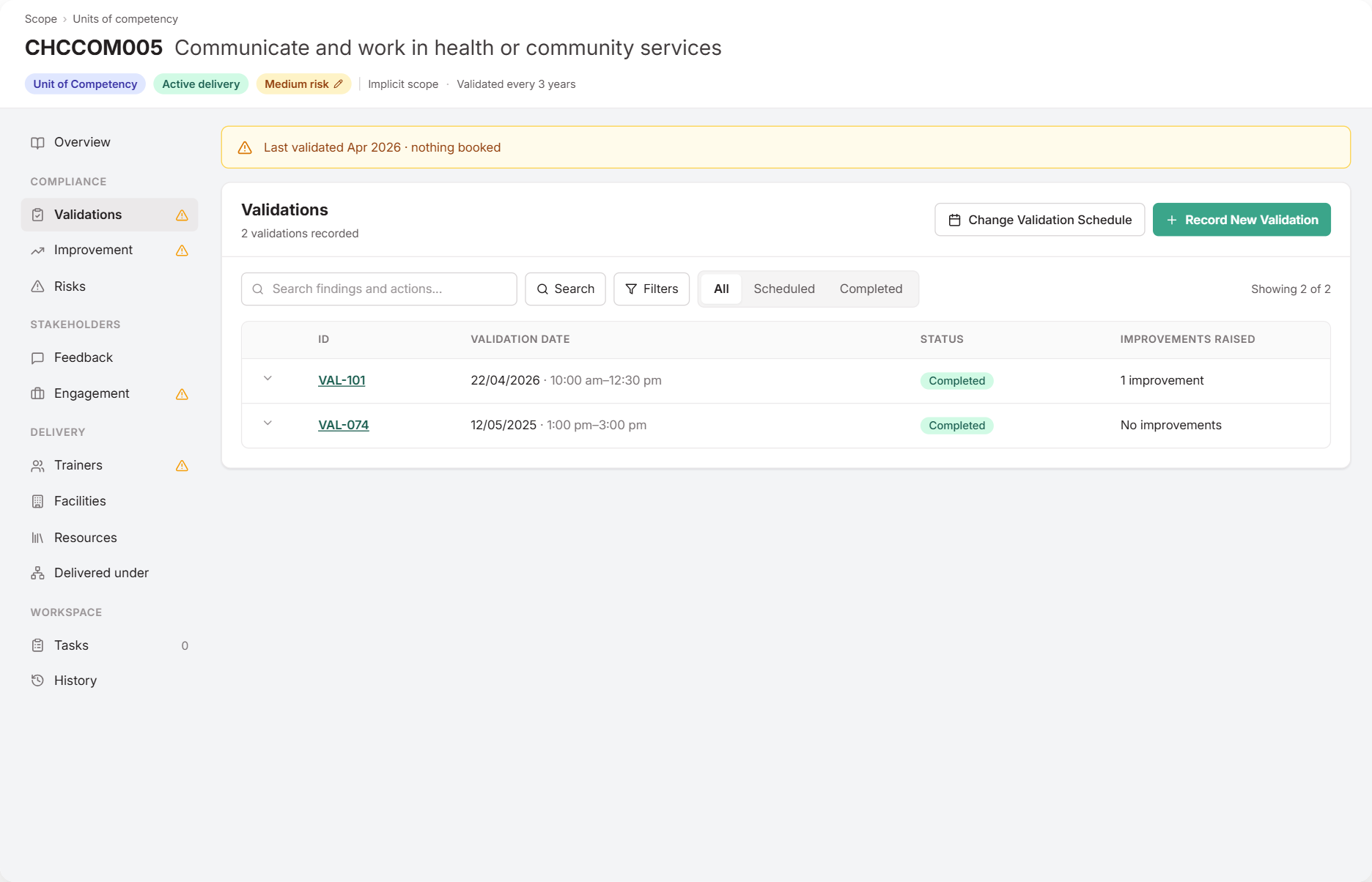
Need to move one unit’s next validation? Open the unit from Scope, go to Validations and click Change Validation Schedule. Admins can also do this from the 5 Year Program by opening the menu next to any unit that has nothing booked.