# Staff Portal Guide
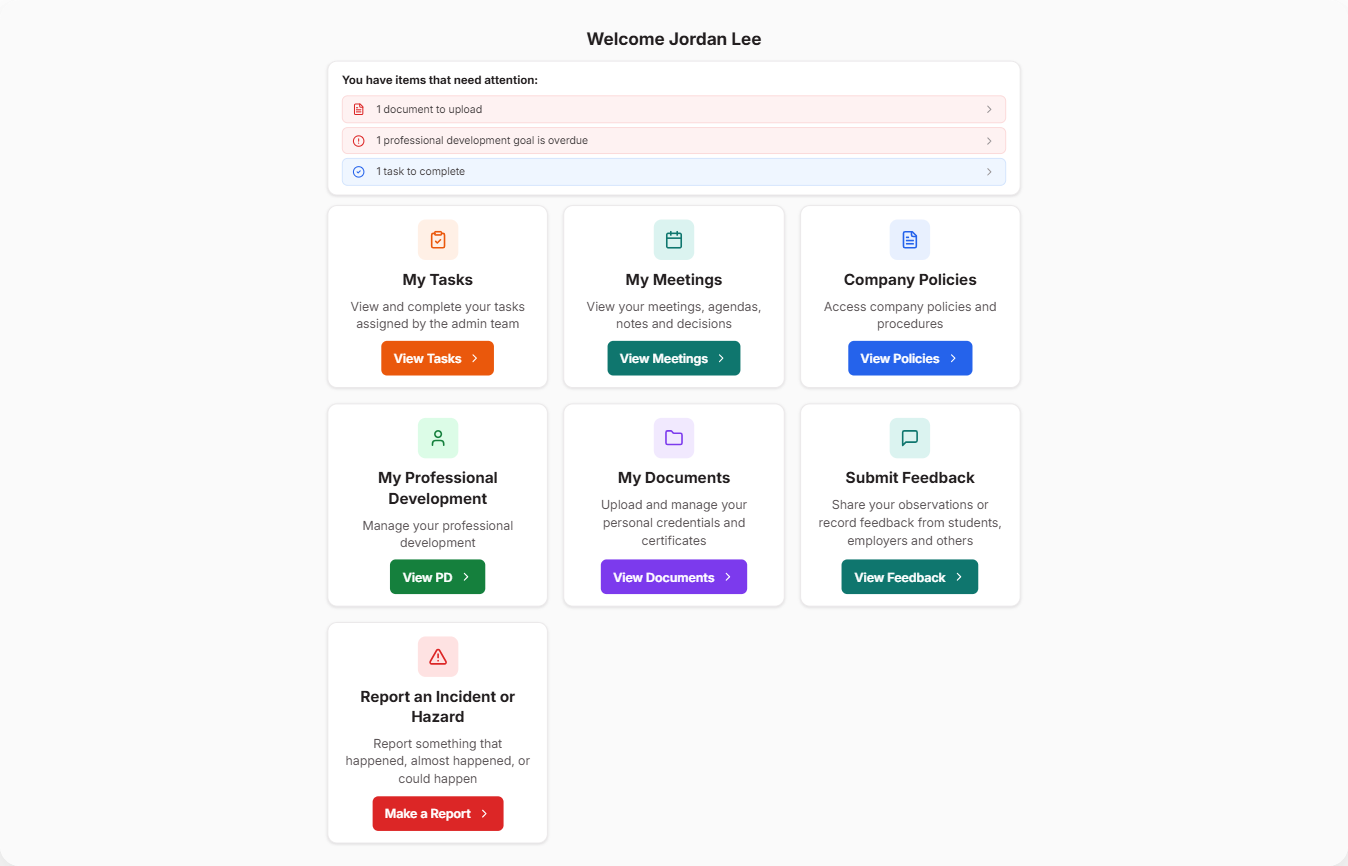
Once you're logged in, you'll land on your Staff Portal home screen.
***
## Anything That Needs Your Attention
At the top of the screen, you'll see a summary of anything waiting on you — like an overdue PD goal, a document to upload, or a task to complete. Tap any of these to go straight to it.
***
## What You Can Do
* **My Tasks** — see and complete anything your RTO has assigned to you
* **Company Policies** — view your organisation's policies and agree to the ones that apply to you (see [Staff Agreements](/help/staff-agreements-setup) if you're not sure why you need to do this)
* **My Professional Development** — log workshops, courses, and other PD activities (see [Add a PD Activity](/help/staff-adding-pd))
* **My Documents** — view documents your RTO has uploaded to your staff record, like certificates or ID
All staff can see all policies. Agreements are set by department, so a staff member only needs to agree to the ones linked to theirs.
***
## Options Your RTO May Have Enabled
Some of these only appear if your RTO has switched them on:
* **My Meetings** — meetings you've been invited to
* **Trainer Matrix** — download a PDF of your own trainer matrix, showing your qualifications and currency at a glance. You'll only see this if you have trainer scope assigned to your record.
* **Submit Feedback** — log feedback you've heard from students, employers, or anyone connected to your RTO (see [Submit Feedback](/help/staff-submit-feedback))
* **Report an Incident or Hazard** — log an incident, hazard or near miss as soon as it happens
Not seeing an option you expected? Your RTO decides which of these are switched on, so check with your admin.
***
## Leaving the Staff Portal
In the top right, a menu lets you log out — and if you also have admin access, switch to the main Admin Portal.
***
## Accessing the Staff Portal on Mobile Devices
The Staff Portal also works through a dedicated app, so you're not stuck at a desk. Sign in with the same details you use on the web — including single sign-on, if your RTO uses it.
It's a handy way to log PD on your way out of a workshop, photograph a hazard where you found it, or tick off a task while you're on site.
The app is called **RTOSafe** and it's free to download.
***
## Common Issues
| Problem | Solution |
| --- | --- |
| An option I expect isn't showing | Your RTO controls which options are switched on for staff — ask your admin |
| Trainer Matrix isn't showing | You need trainer scope assigned to your record — check with your admin |
| I've lost my place | Click **Back** at the top of the page to return to your home screen |