
Recording and Approving PD Activities
PD activities are the training, industry work, research, and other professional development your staff complete. Every activity is reviewed before it counts, so your PD record is evidence you can stand behind at audit.
Adding a PD Activity
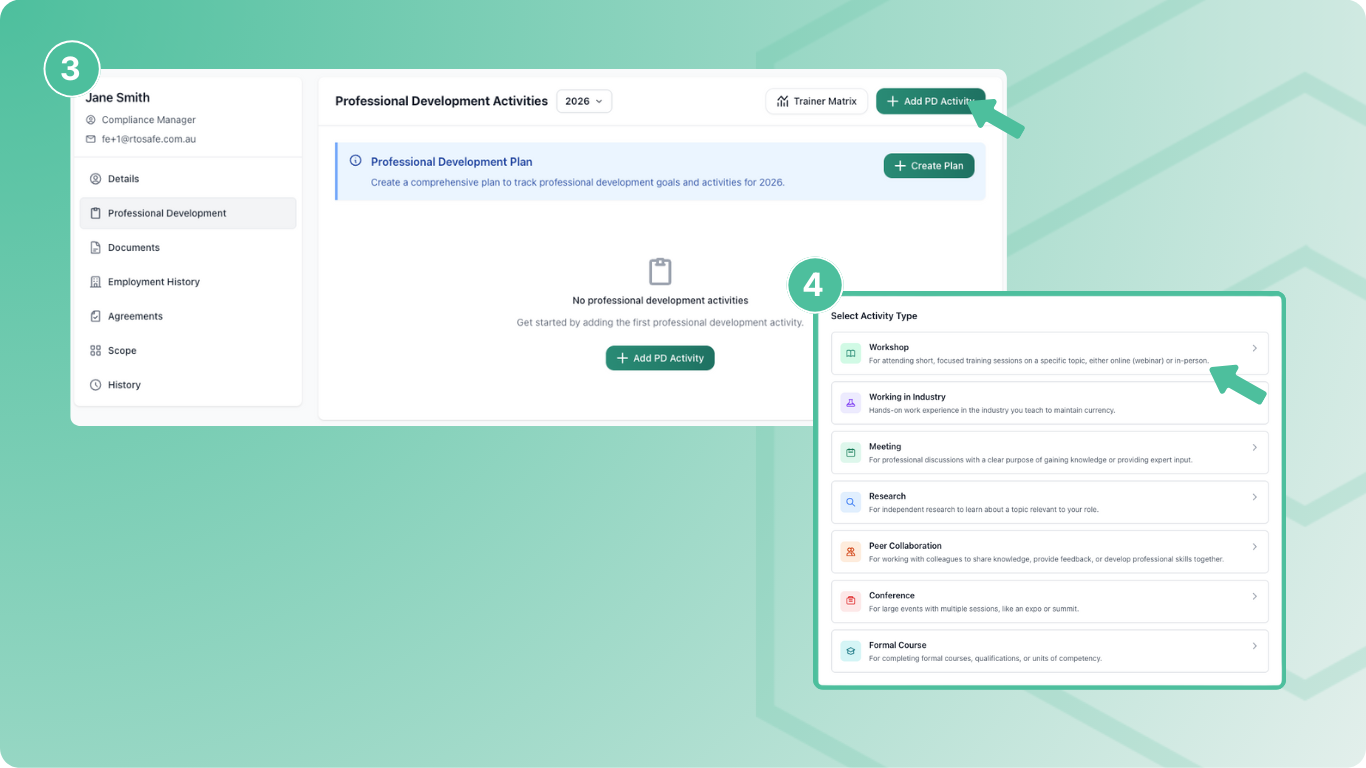
Go to Staff and open the staff member’s profile
Select Professional Development from the sidebar
Select Add PD Activity
Choose the activity type (Workshop, Conference, Working in Industry, etc.)
Fill in the activity details and select Create
Required Information
Activities need at least one Competency Area — this links the hours to your requirements. Duration uses decimals (0.5 = 30 minutes).
Uploading Evidence
Use the Evidence section to attach supporting documents — certificates, attendance records, or other proof of completion. You can upload multiple files per activity.
Linking to Units
After creating an activity, use Map Scope to link it to the training units it supports. Industry currency is checked unit by unit, so an activity only counts toward a unit’s currency — and shows in the Trainer Matrix — when it’s mapped to that unit.
Training & Assessment PD counts toward VET currency through its competency area, so it doesn’t need to be mapped to units.
Staff Self-Submission
Staff can record their own activities in the Staff Portal under My Professional Development, upload evidence, and link each one to a goal in their plan. See Add a PD Activity.
Approving Activities
Every new activity — whether a staff member or an admin adds it — starts as Waiting for Approval. It doesn’t count toward plan progress or trainer currency until it’s approved.
Go to Professional Development and select the Awaiting Approval tab
Open the activity and check the details and evidence
Select Approve, or Request changes with feedback explaining what needs fixing
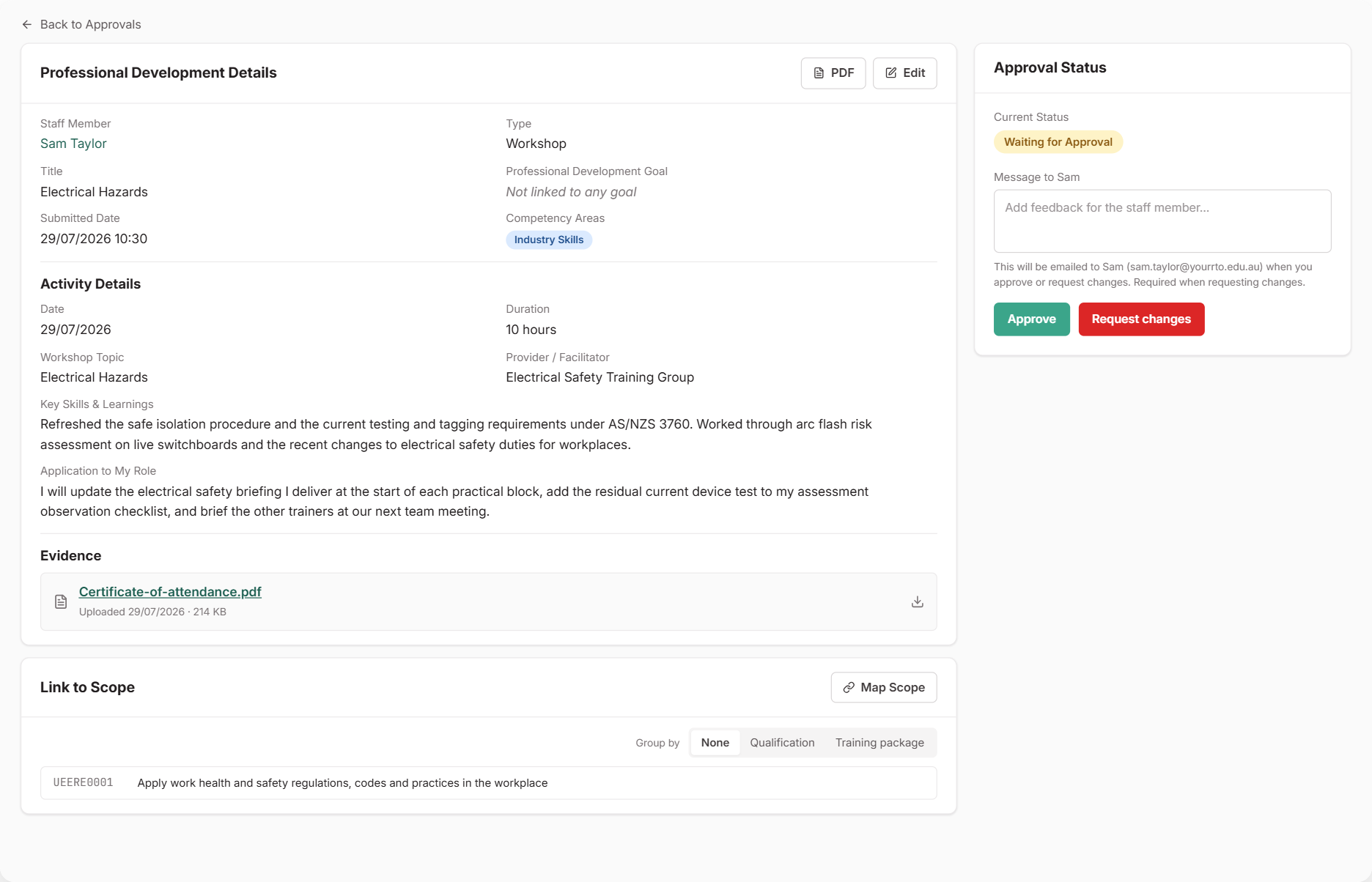
Anyone with compliance admin access can approve activities. On a staff member’s profile, activities waiting for review show as Pending, and returned ones show as Rejected.
Each submission also creates a compliance task, which closes automatically once the activity is reviewed.
If you need to revisit a decision, select Reset Approval to send the activity back to Waiting for Approval.
What Happens Next
- Approved — the staff member is emailed, and the activity counts toward their plan and currency
- Changes requested — the staff member is emailed your feedback and sees the activity as Needs updating in the Staff Portal. When they resubmit, it comes back to Awaiting Approval
- Staff get a weekly reminder if a returned activity hasn’t been updated
Emails are only sent when the Staff Portal is turned on and the staff member has a login.
Alerts
The Staff Professional Development panel on your dashboard shows plans that need attention, a breakdown of plan status, and how many activities are awaiting approval or have been returned.
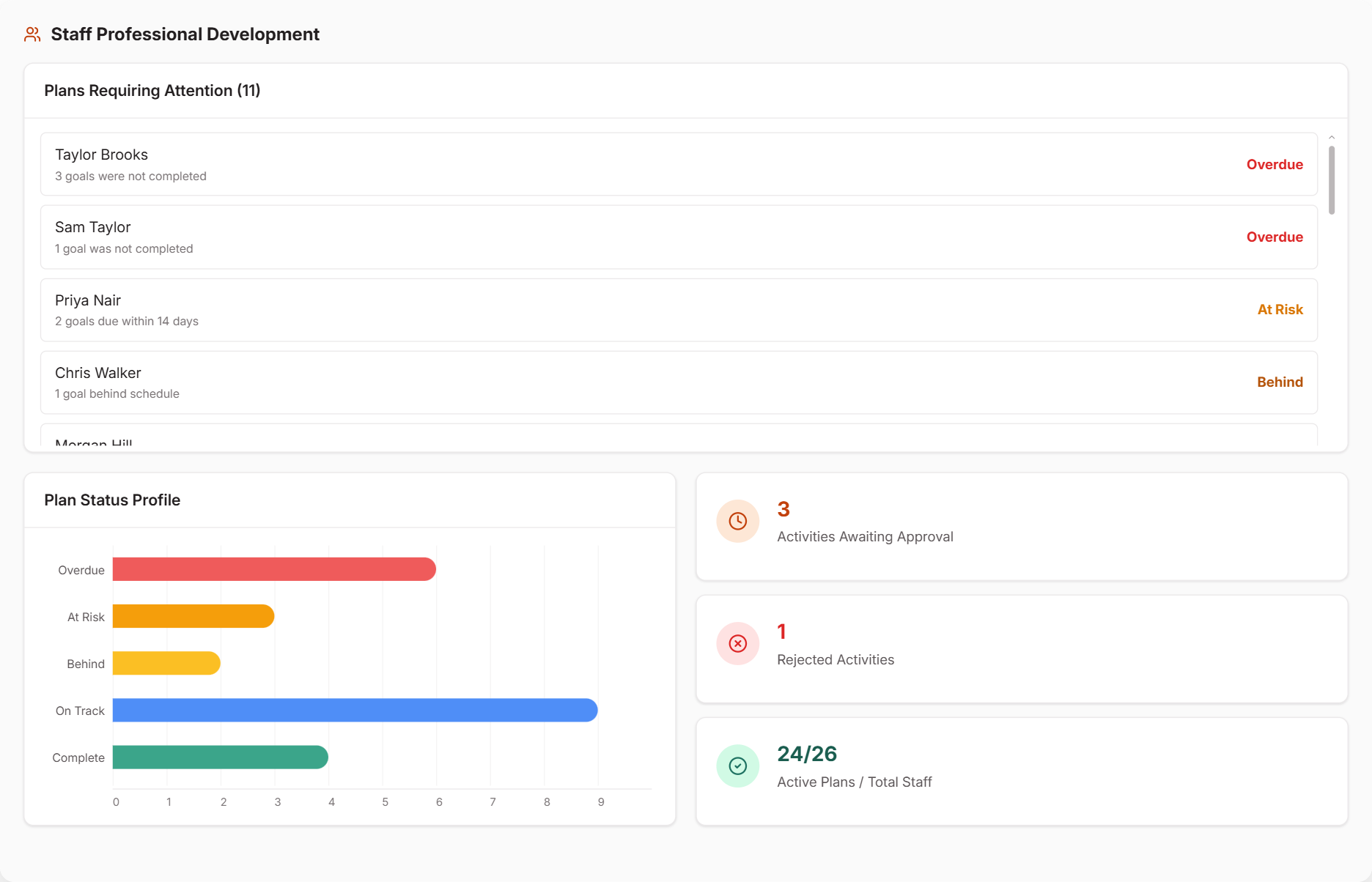
Dashboard alerts also flag:
- Activities to review — shows how many activities are waiting for approval
- Overdue plans — flags staff with incomplete goals from past years. See Managing PD Plans and Goals
- Trainer currency gaps — flags trainers below your benchmark. See Setting Trainer Currency Benchmarks