
Managing Complaints
Go to Complaints to see all open complaints. Use the Resolved tab to view closed complaints.
Complaint Workflow
Each complaint moves through three statuses:
- Submitted — Complaint received, awaiting acknowledgement
- Under Review — Acknowledged, being investigated
- Resolved — Resolution recorded, complaint closed
Acknowledging a Complaint
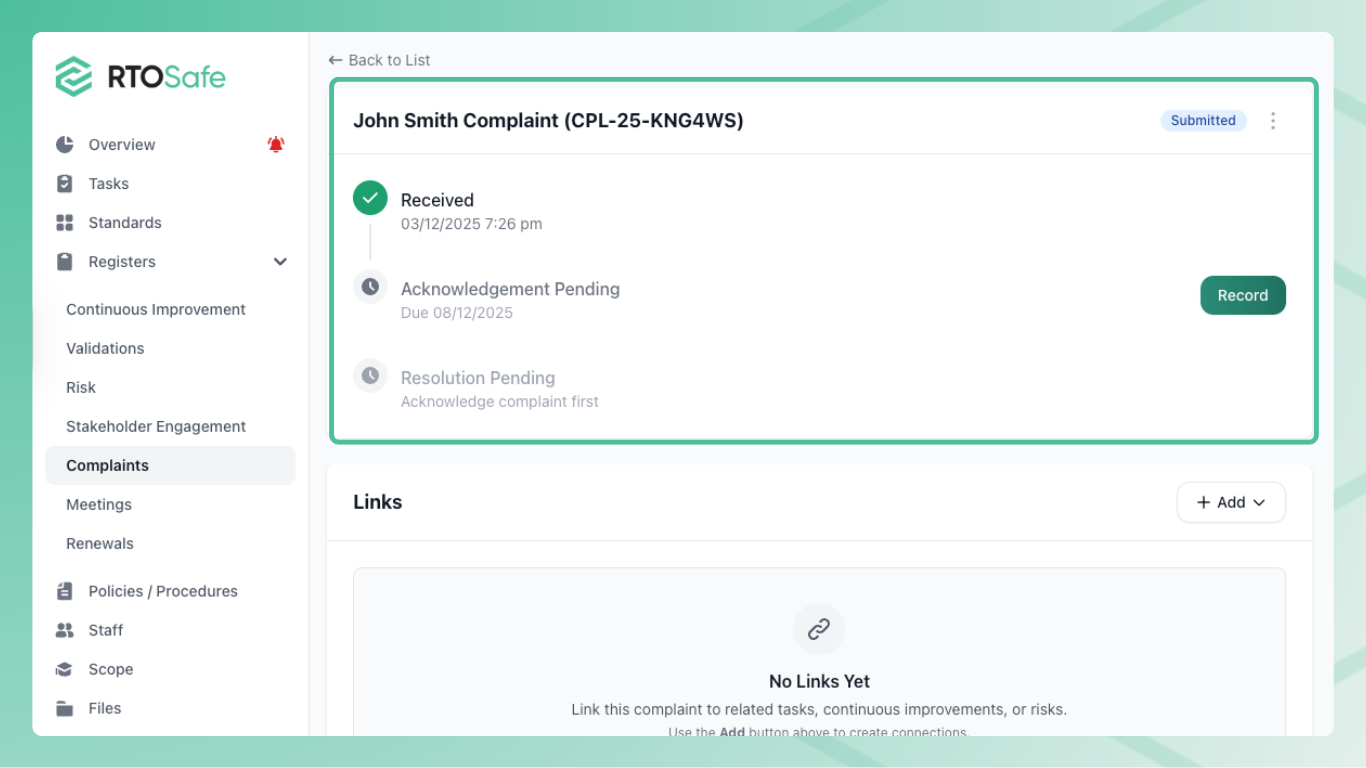
When a complaint comes in, you need to acknowledge it to the complainant within your configured timeframe.
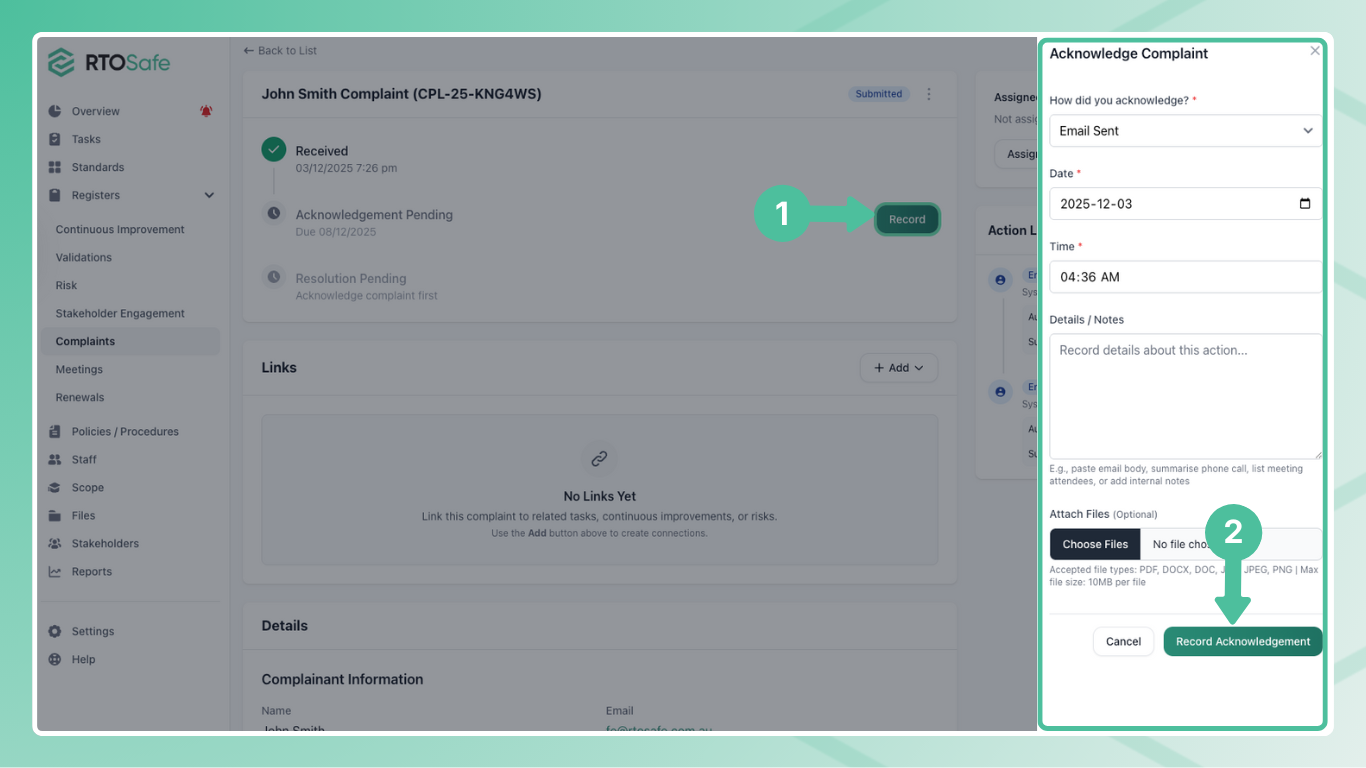
From the complaint details page, select Acknowledge. This opens a form where you record how you acknowledged the complaint:
- Method: Email Sent, Phone Call, or Meeting
- Date and time: When the acknowledgement happened
- Details: What you communicated to the complainant
- Attachments: Any supporting documents (e.g., copy of acknowledgement email)
This records the acknowledgement on the complaint timeline and changes the status to Under Review.
If the complaint isn’t already assigned to someone, acknowledging it automatically assigns it to you.
Recording Actions
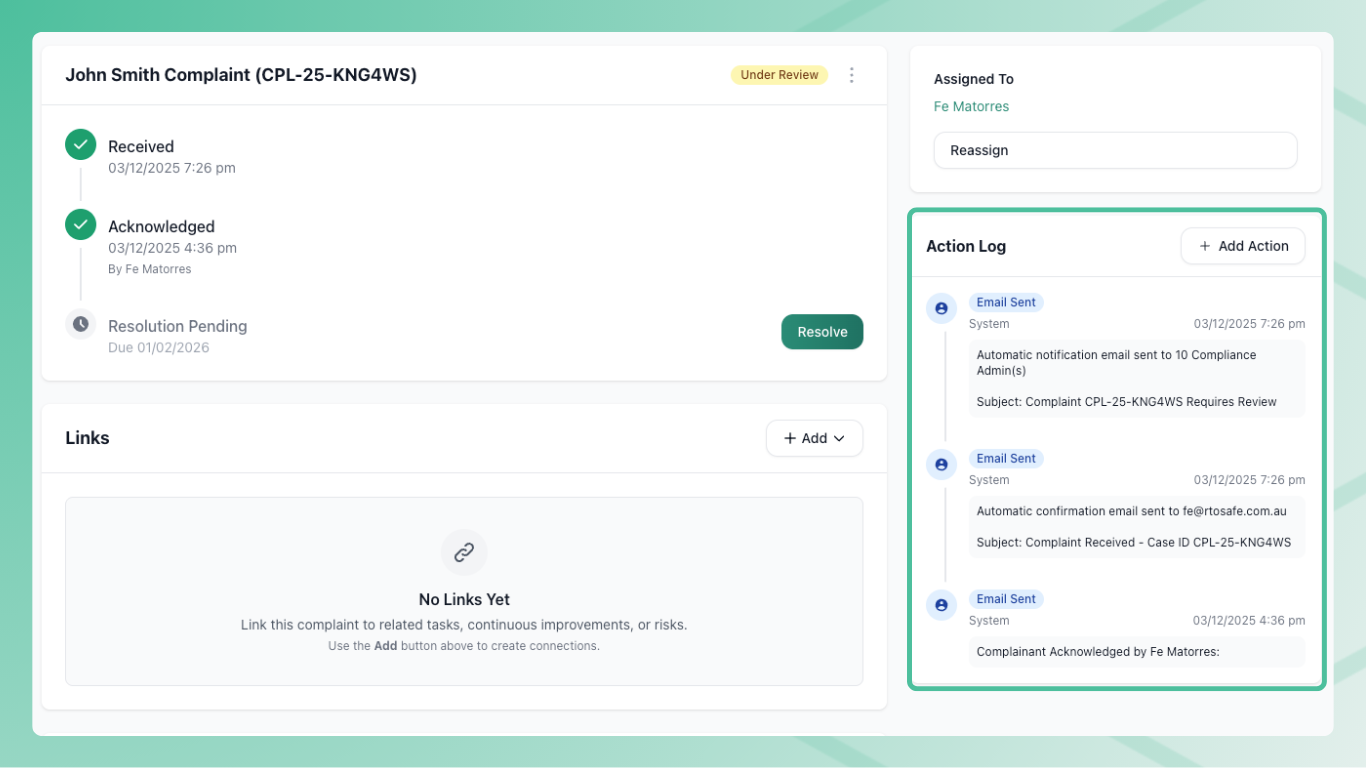
Use action logs to document everything you do while handling a complaint. From the complaint details page, select Add Action.
Action types:
- Email Sent — Correspondence you’ve sent to the complainant or others
- Email Received — Responses or additional information received
- Phone Call — Conversations with the complainant or relevant parties
- Meeting — Face-to-face or virtual meetings held
- Internal Note — Investigation notes, observations, or decisions
Each action records what happened, when it happened, and who logged it. You can attach files to any action.
Linking to Other Records
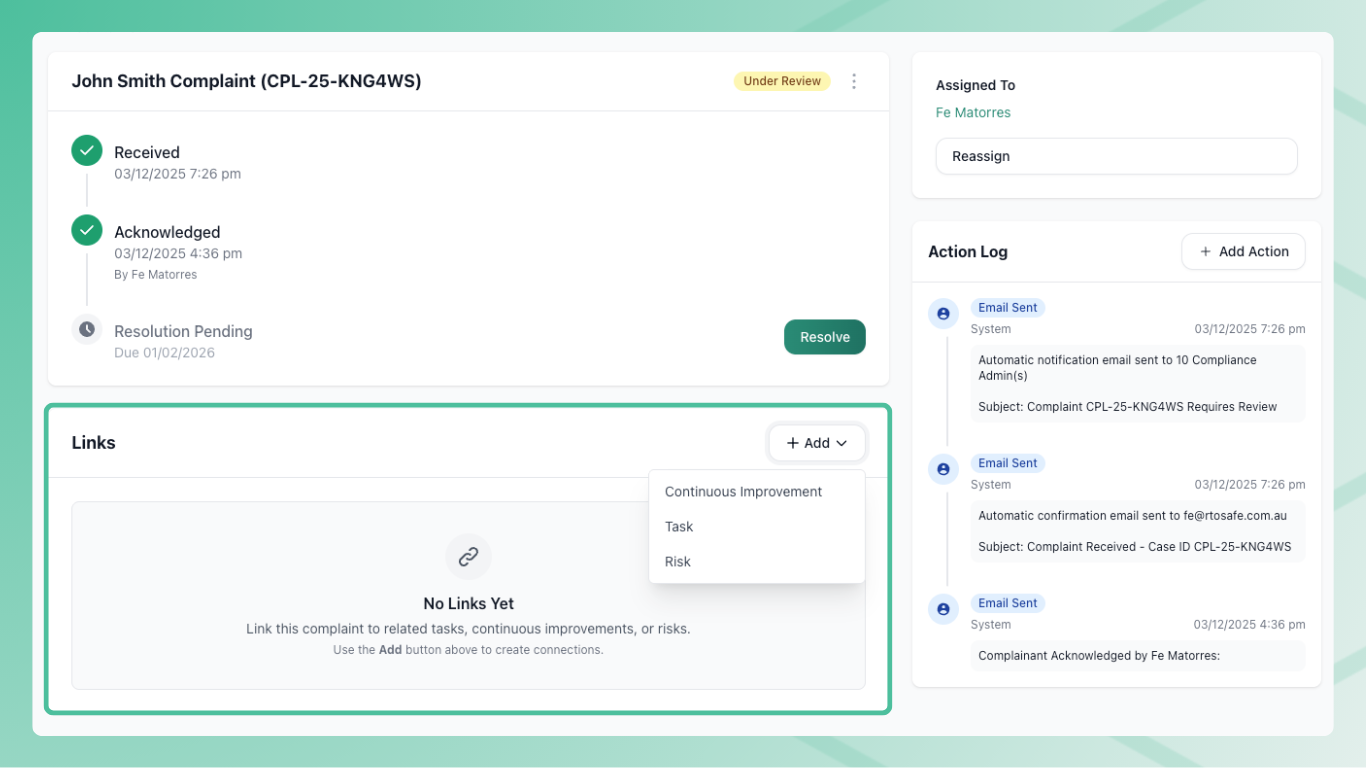
Complaints often lead to follow-up work. You can link a complaint to:
- Tasks — Create or link compliance tasks for follow-up actions
- Risks — Document risks identified through the complaint
- Continuous Improvements — Record improvement opportunities
From the complaint details page, use the Link menu to connect related records. Linked items appear on the complaint timeline.
Resolving a Complaint
When you’ve completed your investigation and communicated the outcome to the complainant, select Resolve.
You’ll need to enter resolution notes explaining:
- What was investigated
- What the outcome was
- What actions were taken (if any)
This changes the status to Resolved and moves the complaint to the Resolved tab.
Archiving Complaints
Resolved complaints can be archived to remove them from your active views. From a resolved complaint’s menu, select Archive.
Archived complaints:
- No longer appear in the Resolved tab by default
- Still exist in the system for audit purposes
- Can be viewed using the archive filter
Overdue Alerts
RTOSafe creates alerts when deadlines are approaching or overdue:
- Acknowledgement overdue — Complaint wasn’t acknowledged within your configured timeframe
- Resolution overdue — Complaint wasn’t resolved within your configured timeframe
These alerts appear on your dashboard and in the complaint list. Completing the relevant action (acknowledge or resolve) clears the alert.