
Make a Policy Public
When to Use This
Making a policy public in RTOSafe gives you a shareable link that always shows the latest version of that policy. Anyone with the link can view it without logging in.
Before You Start
- Your Public Portal must be enabled in Settings → Public Portal
- The policy must already be uploaded (see Upload Policies)
Steps
Open the policy
Go to Policies and select the policy you want to make public.
Open sharing settings
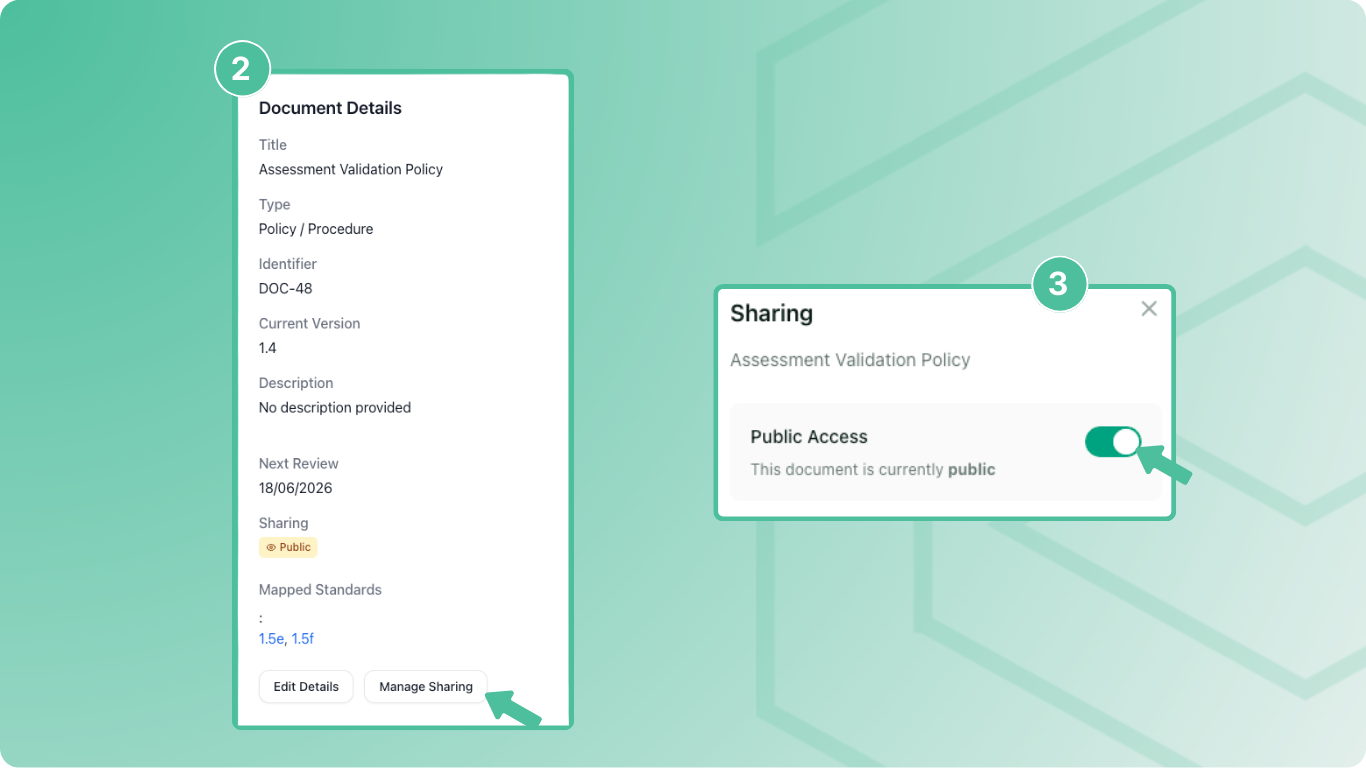
Select Manage Sharing on the policy details page.
Turn on public access
Toggle Public Access on. RTOSafe generates a public URL you can share.
Copy and share the link
Copy the public URL and add it to your website, enrolment forms, or wherever you need it.
What Happens Next
- Anyone with the link can view the policy without logging in
- When you upload a new version, the link automatically shows the updated version
- RTOSafe logs when the policy was made public and by whom
If you use this policy as your complaints policy, you won’t be able to make it private again while it’s selected in your complaints settings.
Common Issues
Manage Sharing button is greyed out
Enable the Public Portal in Settings → Public Portal first
Can't make a policy private
If the policy is set as your complaints policy, you need to select a different complaints policy first in Settings → Complaints
Link shows old version
The link always shows the current version — check whether your new version was uploaded successfully