
Creating PD Plans
A PD plan sets out what a staff member should work on this year. Once it’s set up, progress updates on its own as their activities are approved.
Creating a Plan
Go to Staff and open the staff member’s profile
Select Professional Development from the sidebar
Choose the year and select Create Plan
You can create plans for last year, this year, or, from April onwards, next year.
Adding Goals
Plans can contain three types of goals:
Annual Targets measure ongoing development in hours or activities.
- Example: “Complete 10 hours of industry currency activities”
- Select Add target, then set the target, the competency area and, optionally, an activity type
Specific Activities are single tasks with a due date.
- Example: “Complete First Aid refresher by 31 March”
- Select Add specific activity, then add a title, due date and any instructions for the staff member
- Complete when an approved activity is linked to it
Development Goals describe a capability you want the staff member to build.
- Example: “Lead a validation session independently”
- Select Add development goal, then set the competency area, target date, success measure and any support required
- You can add supporting specific activities beneath it
- When the target date comes around, select Record outcome to record whether it was Achieved or Not achieved and how that was demonstrated
Using the Meeting Register? You can add a Development Goal straight from a Performance Review meeting agenda. It’s added to the staff member’s plan and stays linked to the meeting.
Tracking Progress
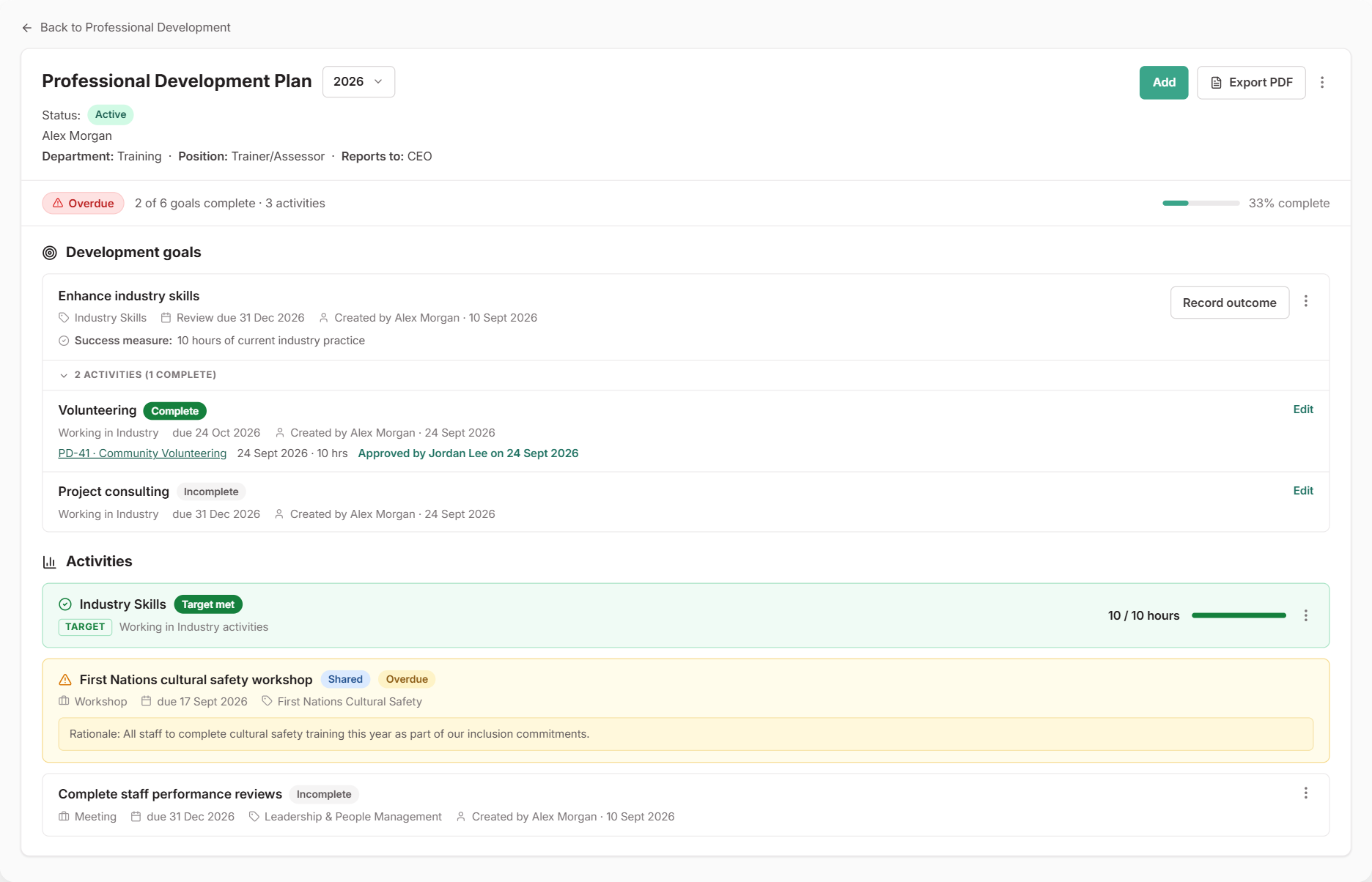
Plans and goals show their status as staff complete activities:
| Status | Meaning |
|---|---|
On Track | Progress is on schedule |
Behind | Falling behind expected progress |
At Risk | Significantly behind schedule |
Overdue | Not completed by year end |
Complete | Goal achieved |
The plan summary shows overall progress and highlights any goals that need attention.
What Happens Next
- Once the plan is active, staff can see it in the Staff Portal under My Professional Development
- Staff can record an activity against any goal in their plan
- Only approved activities count toward goal progress
- When you’re ready to plan next year, use Roll forward to copy this plan’s goals into next year’s plan, with dates moved forward a year
To set up the same goals for several staff, see Using PD Plan Templates and Copied or Shared Activities.