
Manage Workplace Hazards
The Hazards register tracks unsafe conditions from the moment someone spots them until they’re dealt with. Reports come from staff in the Staff Portal, or from admins who select Report Hazard.
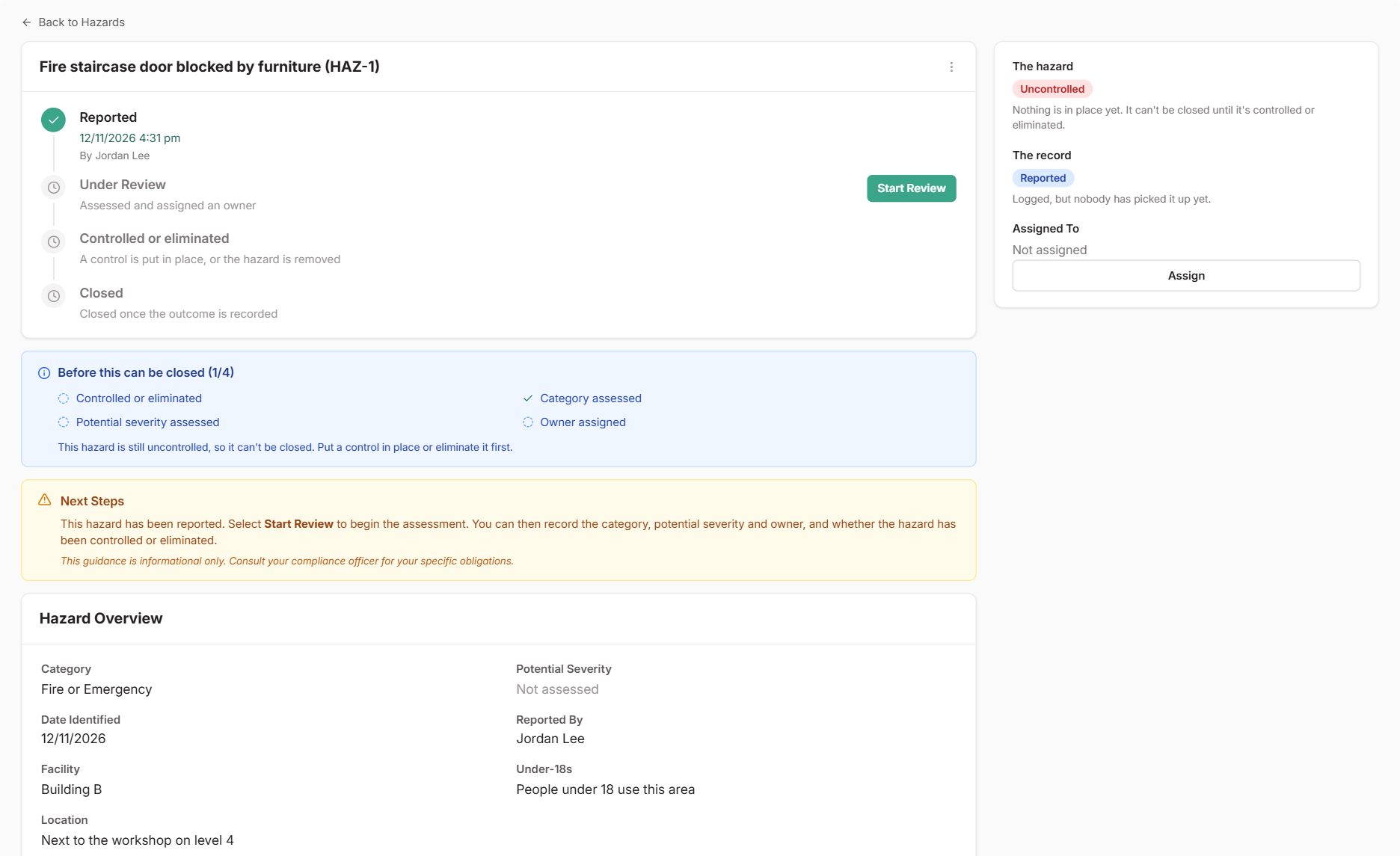
Each hazard tracks two things: where your review is up to, and whether the hazard is still there. A hazard is Controlled when a control is in place but the hazard remains, and Eliminated when it’s gone.
Steps
Start the review
Open the hazard and select Start Review.
Assess it and assign an owner
Select Assign to choose who owns it. Then select Update Assessment to set the category and Potential severity: how bad it could be, not how bad it was.
Deal with it
Use Add in the Actions section to create or link a Task for the work needed, such as a repair or a purchase. When the work is done, update Control status:
Eliminated: the hazard is gone. Record what removed it.Controlled: the hazard is still there, but a control manages it. Link it to a risk on your risk register, where the control has an owner and a review date.
Close the hazard
The checklist on the hazard shows what’s left. When everything is in place, select Close Hazard.
What Happens Next
- The hazard moves to the Closed tab. Use Reopen from the menu to change it later. Closed hazards can’t be edited or relinked.
- For a controlled hazard, the linked risk carries on. Its reviews come up on the risk register, so the control keeps being checked.
- Hazards assigned to you appear in My work.
- If someone was hurt or there was a dangerous event, log it in Incidents as well.
Common Issues
Why can't I close a hazard?
Every hazard needs a category and potential severity. After that, it depends on Control status. AnUncontrolled hazard can't be closed. An Eliminated hazard needs a note on what removed it. A Controlled hazard needs a linked risk.