
Uploaded and Online Policies
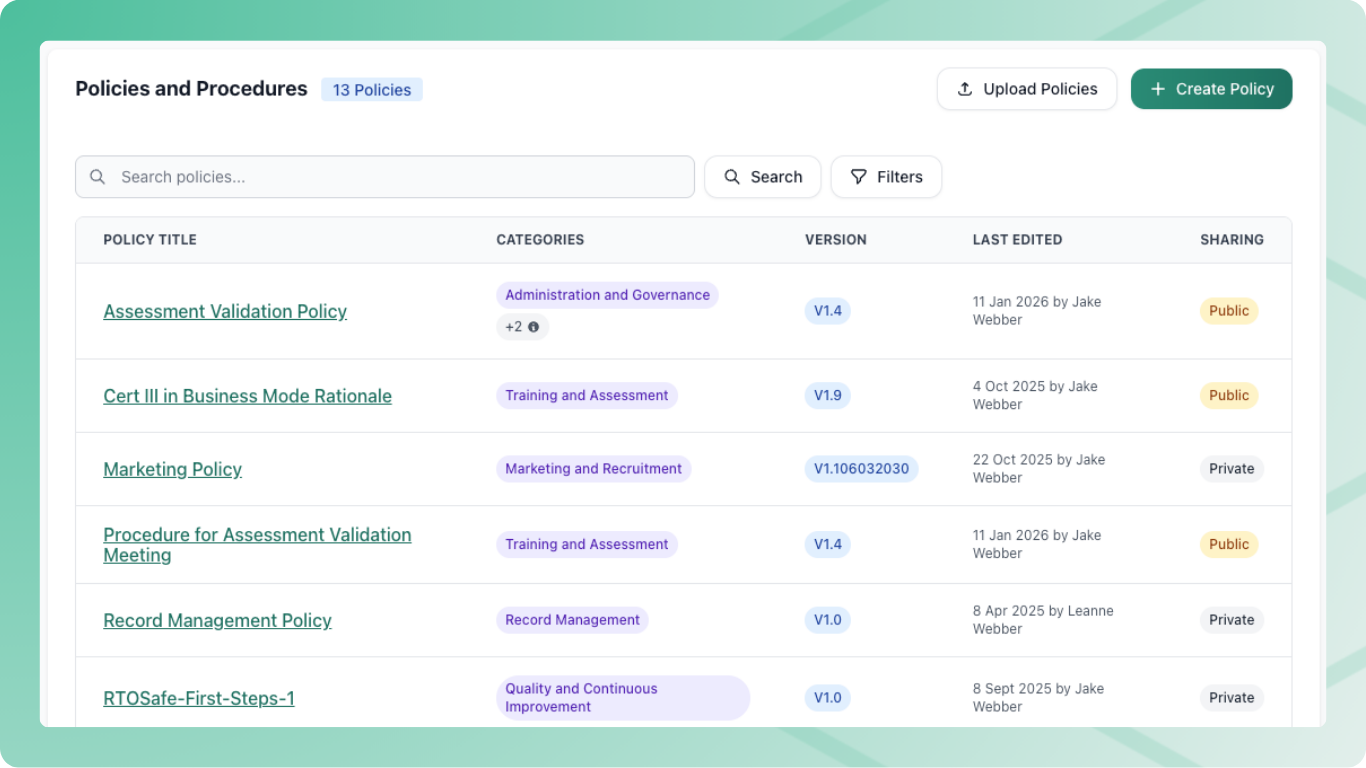
RTOSafe supports two types of policies:
Uploaded Policies
These are PDF or Word files you upload to RTOSafe. Use this when:
- You maintain policies in Word or another editor outside RTOSafe
- You need precise formatting control (letterheads, complex tables)
- Multiple people edit the source document before uploading
To update an uploaded policy, you upload a new file each time.
Online Policies
These are policies you write and edit directly in RTOSafe. Use this when:
- You want to edit policies without leaving RTOSafe
- You don’t need complex formatting
- You want faster updates — just edit and save
Online policies use a simple text editor. Changes save immediately as a new version.
Which Should I Use?
Most RTOs start with uploaded policies — you probably already have Word documents. This works well and there’s no pressure to change.
Consider online policies if you find yourself frequently making small updates and want to skip the upload step.
You can have a mix — some policies uploaded, others online. Each policy is independent.
Convert to an Online Policy
You can convert an uploaded policy to an online policy. This is useful when you want to stop managing a separate Word file and edit directly in RTOSafe instead.
This change is permanent. Once converted, you can’t switch back to uploading files for that policy.
Open the policy
Go to Policies and select the policy you want to convert.
Start a new version
Select Create New Version.
Choose to change to online
Select Change to Online Document.
Copy in your content
Open your current policy document (PDF or Word) and copy the text. Paste it into the RTOSafe editor.
You can format the content using the editor toolbar — headings, lists, tables, and basic styling are supported.
Save
Enter a version number and notes, then select Save.
What Happens Next
- The policy is now an online policy — all future versions are created in the editor
- Staff see the new version and receive agreement requests (if enabled)
- The public link (if set up) shows the new content immediately
- Previous uploaded versions remain in the version history
Common Issues
Can't find Change to Online Document
This option only appears when you select Create New Version on an uploaded policy.
Formatting looks different
The online editor supports basic formatting only. Complex layouts from Word may need simplifying.
Want to go back to uploading
This isn’t possible — the conversion is permanent. You’d need to create a new policy and archive the old one.