
Use the Clause Assistant
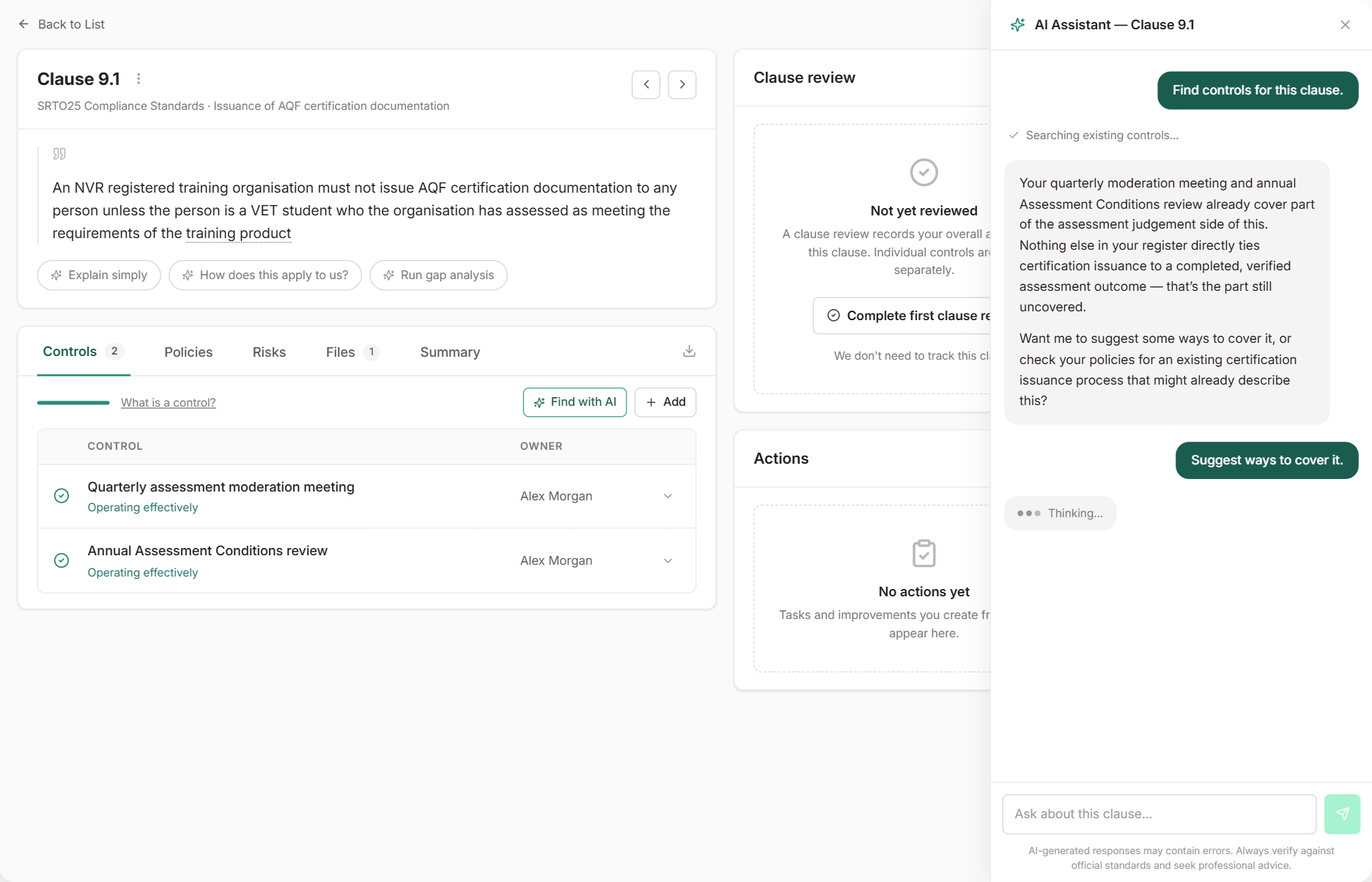
The assistant on each clause page finds the controls and policies you already have that address the clause. You decide what gets linked. You can also ask it to explain the clause or check it for gaps.
Open the Assistant
Go to Standards, select your standard set and open a clause. Then either:
- select Find with AI on the Controls tab to find controls for this clause, or
- choose one of the prompts under the clause text, or type your own question.
Find Controls
Find with AI suggests controls from your register that fit this clause. Check that each activity really applies, then confirm the link. If part of the clause is still uncovered, the assistant can suggest ways to cover it.
Linking an existing control is usually best. One control can cover many clauses, and its policies and evidence come with it.
Find Policies
Ask, for example, “Find policies that cover this clause”. Check that each suggested policy describes how your RTO meets the clause before you link it. Linked policies appear on the clause’s Policies tab.
Where you can, link the policy to a control instead, so it shows who carries out the activity and how often. See Link Evidence to a Standards Clause.
Review Before Adding
The assistant never links or creates anything on its own. You review and confirm every suggestion, including tasks and continuous improvements. If a suggestion doesn’t fit, ignore it and ask a follow-up question.
Common Issues
Find with AI or the prompts aren't showing
You need Read/Write access to Standards, Tasks, Continuous improvement, Controls, and Policies and procedures. Ask the person who manages your access profile to check these areas.
The assistant can't find a policy I know exists
Archived policies aren’t included. Check that the document is in Policies, then try asking with different words, such as the document’s name.
The answers don't fit how our RTO operates
The assistant tailors its answers to your RTO Operational Profile. Complete the profile and ask again.