
Generate a Trainer Matrix
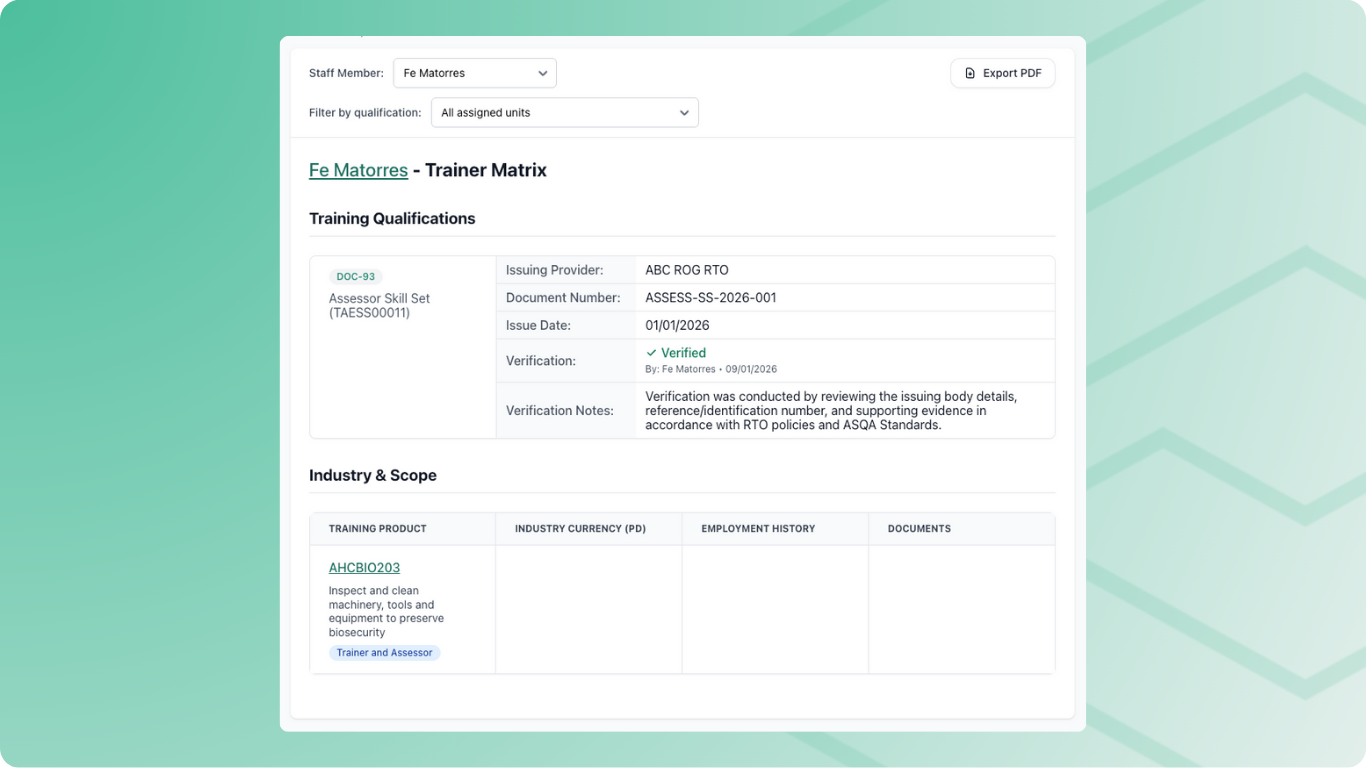
The Trainer Matrix brings together everything about a trainer’s competency in one place — their training qualifications, professional development, employment history, and documents, all mapped against the units they deliver.
When to Use This
Use the Trainer Matrix when you need to:
- Prepare evidence for an audit
- Check a trainer has current industry experience for their scope
- Review gaps in a trainer’s qualifications or documentation
- Export a trainer’s competency evidence as a PDF
Before You Start
The Trainer Matrix pulls information from several places. For a complete report, make sure the staff member has:
- Scope assigned — the units they train or assess. See Assign Scope to Trainers and Assessors.
- Employment history — verified and linked to scope. See Record Trainer Employment History.
- PD activities — approved, with competency areas selected. See Record Staff Professional Development.
- Documents — verified and not expired. See Manage Staff Credentials and Documents.
Employment history, PD activities, and documents only appear in the matrix if they’re mapped to scope items. Use Map Scope when adding these records to link them to the right training products.
Viewing the Trainer Matrix
Go to Reports, select Trainer Matrix and choose the staff member. It shows their training and industry qualifications, then each unit they deliver with the PD, employment history and documents that support it.
To export a matrix for one area rather than everything the trainer delivers, filter by qualification or delivery stream. See Set Up the Units You Deliver.
Exporting
Select Export PDF for a copy to keep as audit evidence. To let trainers download their own, turn on Trainer Matrix Download in Settings → Staff Portal.
Common Issues
Employment history not appearing
Check the record is verified, then use Map Scope to link it to the relevant units. See Record Trainer Employment History.
PD activity not showing
Check the activity is approved and has a competency area selected. If you need it against specific units, use Map Scope. See Record Staff Professional Development.
Document not showing
Check the document is verified and use Map Scope to link it to the relevant units. See Manage Staff Credentials and Documents.